Your profile photo on Instagram is the calling card of your account. Whether you use Instagram for personal or business purposes, a strong profile photo helps you stand out and make a professional impression. In this guide, we show you step-by-step how to change your Instagram profile photo on both desktop and mobile devices.
Why is a Good Instagram Profile Photo Important?
Your profile photo is the first thing people see when they visit your profile or come across you in their feed. A good profile photo ensures:
Recognizability - Ideal if you have a personal brand or business.
Professional appearance - People trust accounts with a clear profile photo more easily.
More followers and engagement - An attractive profile photo draws more attention and interaction.
How to Change Your Instagram Profile Photo via Desktop?
Follow these simple steps to change your Instagram profile photo on your computer:
- Go to Instagram
Open Instagram and log into your account. - Go to your profile
Click on your profile photo in the top right corner or on your name to go to your profile page. - Edit profile photo
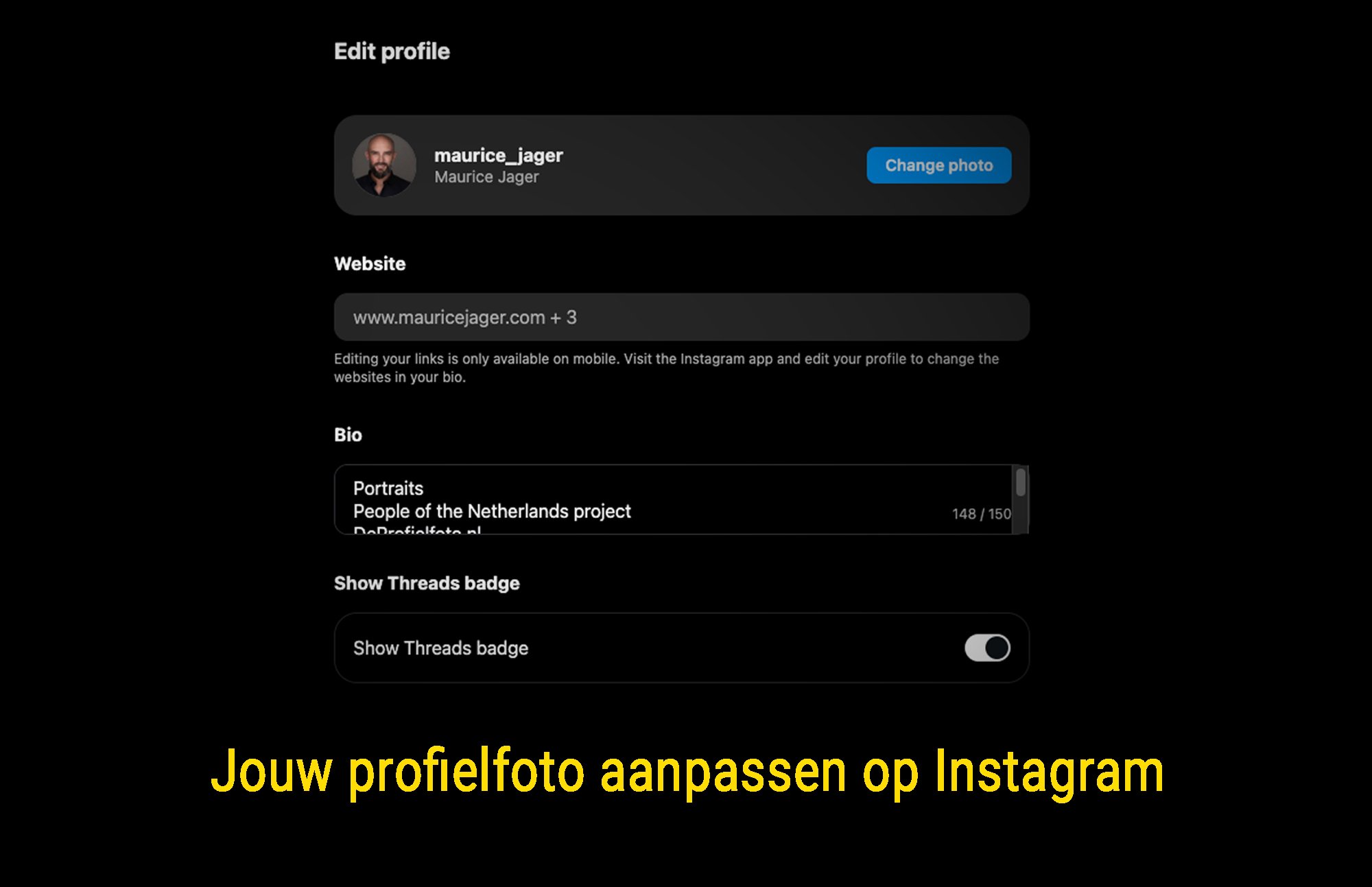
Click on Edit Profile and then on your current profile photo. - Upload a new photo
- Choose Upload Image to select a new photo.
- Or use a previously uploaded photo.
- Crop the image
Adjust your image so that it fits well in Instagram's circular profile format. - Save
Click Save Changes and your new Instagram profile photo will be updated immediately.
Step-by-step guide with images
How to Change Your Instagram Profile Photo via the Mobile App?
Are you using Instagram on your smartphone? Then follow these steps:
- Open the Instagram app
Make sure you are logged into your account. - Go to your profile
Tap on your profile photo in the bottom right corner to go to your profile page. - Edit profile photo
Tap on Edit Profile and then on your current profile photo. - Choose a new photo
Take a photo: Take a new profile photo directly with your camera.
- Choose from gallery: Select an image from your photo album.
- Adjust the photo
Instagram gives you a preview of how your photo will look. Make sure your face is well-centered. - Save
Tap Done, and your Instagram profile photo will be updated immediately.
Frequently Asked Questions About Instagram Profile Photos
Can I change my Instagram profile photo without notification?
Yes! Instagram does not send a notification to your followers when you change your profile photo.
Why isn't my profile photo being updated immediately?
Sometimes it takes a few minutes before Instagram displays your new photo everywhere. Try restarting the app or clearing your cache.
What is the ideal format for an Instagram profile photo?
- Recommended size: 320 x 320 pixels
- Minimum size: 110 x 110 pixels
- Aspect ratio: 1:1 (square), but Instagram crops the image into a circle.
Can I restore an old profile photo?
Instagram does not save old profile photos. If you want to use a previous image again, you will need to re-upload it yourself.
Can I hide my profile photo from others?
No, your profile photo is always visible, even if your profile is private.
Tips for a Perfect Instagram Profile Photo
Do you want your Instagram profile photo to immediately catch attention? Keep these tips in mind:
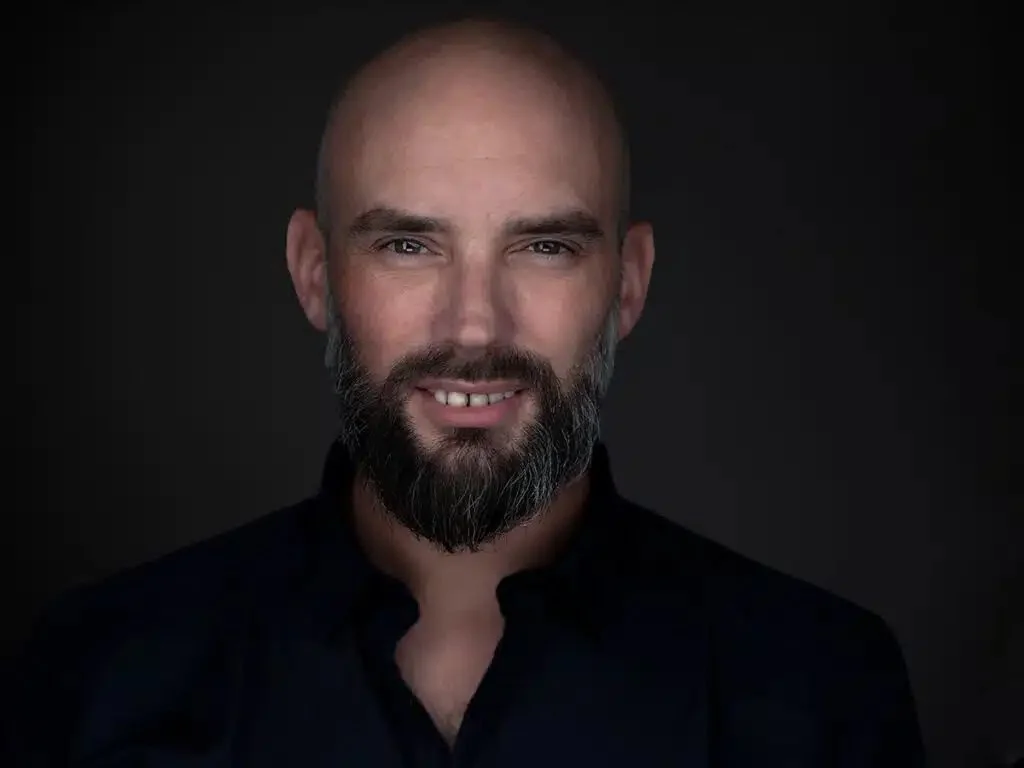
Use a sharp, clear photo - Make sure your face is clearly visible.
Choose a neutral background - This prevents distraction and keeps the focus on you.
Use high-quality images - A blurry or pixelated photo detracts from your appearance.
Match your profile photo to your brand - Use the same style and colors consistently as on your Instagram feed.
Avoid text or logos - Instagram crops profile photos into a circle, which can make text or logos unreadable.
With these simple steps and tips, you can effortlessly change and optimize your Instagram profile photo. This way you ensure that you always look professional and recognizable on your profile!