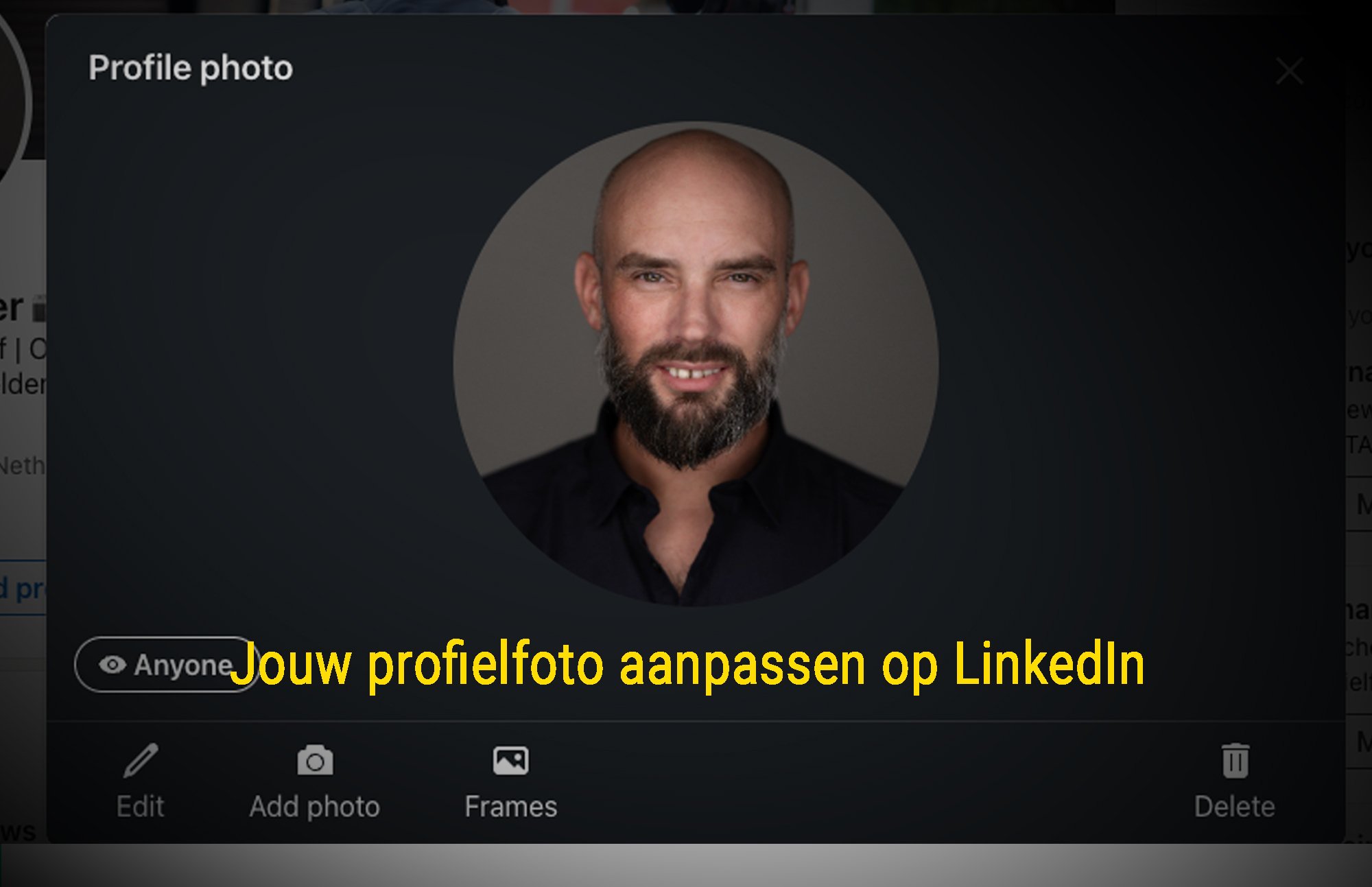
Your LinkedIn profile photo is the first thing people see when they visit your profile. Whether you're looking for a job, attracting clients, or expanding your network, a professional profile photo is essential.
In this guide, you'll learn step by step how to change your LinkedIn profile photo and discover the best tips for a photo that makes an impact!
Why a Strong LinkedIn Profile Photo Matters
A good LinkedIn profile photo is crucial for making a strong first impression. Research shows that profiles with a professional photo are viewed 21x more often and receive 36x more connection requests than profiles without a photo.
LinkedIn is THE professional networking platform, and your profile photo plays a major role in your online presence.
✅ More profile views – Profiles with a photo get up to 14x more views.
✅ Professional appearance – Recruiters and clients take you more seriously.
✅ Personal connection – People remember you faster with a good photo.
✅ Higher engagement – Posts with a face get more interaction.
A poor profile photo or no photo at all can result in less visibility and fewer serious opportunities. Time to optimize your profile photo!
How to Change Your Profile Photo on LinkedIn (Desktop)
1️⃣ Go to LinkedIn
- Open LinkedIn and log in.
2️⃣ Go to your profile
- Click on "Me" in the top right corner, then click "View Profile".
3️⃣ Click on your current profile photo
- Hover over your photo and click "Edit".
4️⃣ Upload a new photo
- Click "Add photo" and select an image from your computer.
5️⃣ Adjust your photo
- Use LinkedIn's editor to crop, zoom, or add a filter to your photo.
6️⃣ Save and preview
- Satisfied? Click "Save" and view your profile to check how your photo looks.
How to Change Your Profile Photo on LinkedIn (Mobile App)
1️⃣ Open the LinkedIn app
- Make sure you're logged in.
2️⃣ Go to your profile
- Tap on your profile photo or your name to open your profile.
3️⃣ Edit profile photo
- Tap on your photo and choose "Edit".
4️⃣ Choose a new photo
- Upload an image or take a new photo with your camera.
5️⃣ Edit and adjust
- You can zoom, crop, and apply filters to the photo.
6️⃣ Save and check
- Tap "Save" and see how your profile photo looks on your profile.
Pro Tips for a Perfect LinkedIn Profile Photo
Your LinkedIn profile photo should be professional, clear, and representative. Use these tips to optimize your photo:
✔️ Use a neutral background – A calm background keeps the focus on you.
✔️ Wear professional clothing – Depending on your industry, but avoid overly casual outfits.
✔️ Ensure high resolution – Minimum 400 x 400 pixels, but preferably 1200 x 1200 pixels for optimal sharpness.
✔️ Lighting is everything – Use natural light or soft studio lighting.
✔️ Make eye contact and smile subtly – This projects openness and trustworthiness.
✔️ Avoid selfies – A professional photo (by a photographer) is best.
✔️ Test different photos – Ask colleagues or friends for feedback.
Extra tip: Use LinkedIn's Profile Photo Analysis Tool to check if your photo looks professional enough!
Frequently Asked Questions About LinkedIn Profile Photos
1. What is the best format for a LinkedIn profile photo?
- Minimum size: 400 x 400 pixels
- Recommended size: 1200 x 1200 pixels
- Maximum file size: 8 MB
- Supported formats: JPEG, PNG
2. Can I make my profile photo visible only to my connections?
Yes! Go to Settings > Visibility > Profile Photo and choose:
- Everyone (publicly visible)
- Your network (only visible to your connections)
- Only you (no one can see it, not recommended)
3. Why isn't my profile photo displaying correctly?
- Make sure your image is square and has high resolution.
- Check that the photo isn't too dark or blurry.
- LinkedIn may apply compression; use a high-quality JPEG.
4. Can I restore my old profile photo?
No, LinkedIn doesn't save your old profile photos. If you want to restore an old photo, you'll need to upload it again.
5. Can I use a business logo as my profile photo?
No, LinkedIn requires a personal profile photo. For your company, use a company logo on your LinkedIn company page.
Conclusion: Make a Strong First Impression with Your LinkedIn Profile Photo!
A good LinkedIn profile photo can make the difference between a strong profile that stands out or a profile that gets skipped. By following the steps in this guide and applying the tips and tricks, you'll ensure that your LinkedIn profile photo is professional, sharp, and recognizable.
Now it's your turn! Go to LinkedIn and update your profile photo today!