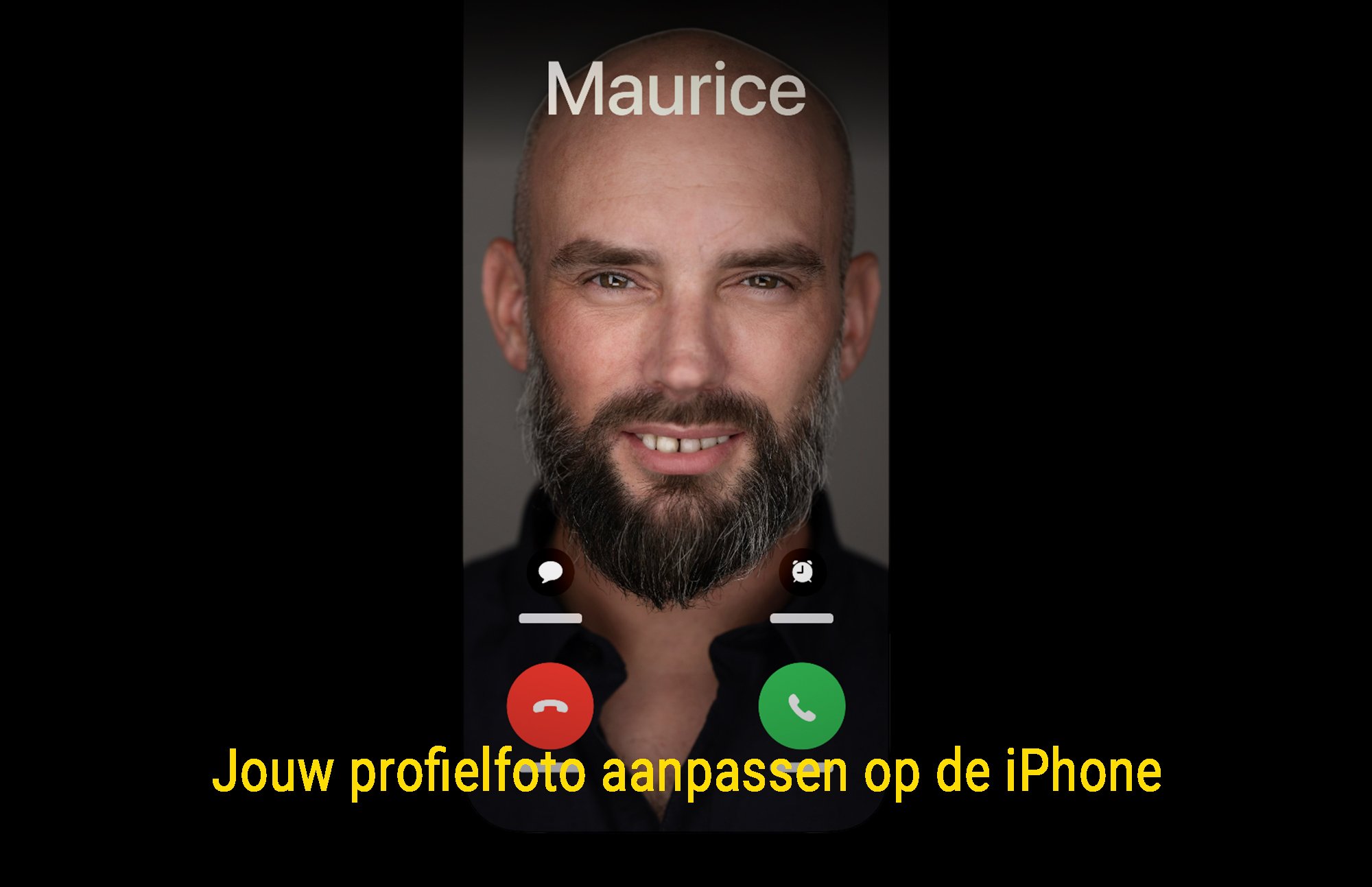
Want to update your profile photo on your iPhone and make sure it's visible when you call someone? Your profile photo is used in iMessage, FaceTime, and other Apple services. Additionally, you can set your photo to be displayed on the phone of the person you're calling. In this guide, we'll explain step by step how to change your iPhone profile photo and how to ensure your photo appears during incoming calls.
Why is a Good iPhone Profile Photo Important?
A profile photo on your iPhone not only adds a personal touch but also makes you more recognizable in contacts and messages. Plus, if you set your photo to be shared, your friends and family will see it when you call or send an iMessage.
Benefits of a profile photo on iPhone:
✅ Recognition - Contacts immediately see who you are.
✅ Personalization - Your iPhone feels more like 'your' device.
✅ Better connection - People see your face during incoming calls and messages.
How to Change Your Profile Photo on iPhone?
Updating your iPhone profile photo is simple and can be done in several ways, depending on where you want the photo to appear.
Option 1: Change Profile Photo via Contact Card
Your iPhone contact card contains your name, phone number, and profile photo. Here's how to change it:
- Open the Phone app
- Go to the Phone app and tap Contacts (at the bottom).
- Tap your own name at the top (your personal contact card).
- Change your profile photo
- Tap Edit (top right).
- Tap your profile photo and choose:
- Take a new photo with the camera.
- Choose a photo from your gallery.
- Use a Memoji or Emoji as profile photo.
- Adjust the photo
- After selecting a photo, you can crop and zoom in.
- Tap Done to save the changes.
Option 2: Change Profile Photo in iMessage and FaceTime
Want your profile photo to appear in iMessage and FaceTime? Follow these steps:
- Open the Settings app
- Go to Settings > Messages.
- Change your name and photo
- Tap Share Name and Photo.
- Tap Choose Name and Photo.
- Select your profile photo
- Choose a photo from your library or take a new one.
- You can also set a Memoji as your profile photo.
- Decide who sees your photo
- Choose whether your photo is shared with Everyone or only with Contacts.
- Tap Done to save the settings.
📸 Official Apple guide with images
How to Make Your Photo Visible When You Call Someone?
Want your profile photo to appear on the phone of the person you're calling? This can be done in two ways:
Option 1: Set Contact Photo for Display During Calls
Apple has a feature that lets you share your photo via iMessage, but for incoming calls, your contacts also need to save your photo. Here's how to set it up:
- Ask the other person to edit your contact information
- Have them go to Contacts and select your name.
- Tap Edit > Add Photo.
- Have them choose a photo or select an existing one.
- Tap Done to save.
- Make sure you're using iMessage
If the other person has iMessage enabled, your profile photo can be automatically updated.
📌 Note: If you call via FaceTime, your set photo will be displayed directly if the other person has saved you in their contacts.
Option 2: Set Profile Photo with a Contact Poster (iOS 17+)
With iOS 17, Apple introduced Contact Posters, allowing your profile photo to automatically appear when you call someone. Here's how to set it up:
- Go to Settings > Contacts > My Card
- Tap Contact Poster and Profile
- Choose a photo or Memoji
- Customize the style (color, font, background)
- Select 'Share with Contacts'
👉 Now your contacts will automatically see your photo when you call!
📸 Read more about Contact Posters in iOS 17
Frequently Asked Questions About iPhone Profile Photos
Why doesn't my profile photo automatically update for others?
- The other person needs to have iMessage and Contacts synchronization enabled.
- Your photo will only be shared automatically if they have saved your contact.
Can I have a profile photo without sharing it?
Yes! When setting up your profile photo in iMessage, you can choose not to share it with others.
Can I restore an old profile photo?
If you still have an old profile photo in your gallery, you can re-upload it. Apple does not save previous versions of your profile photo.
Why don't I see profile photos of my contacts?
- The other person hasn't set a profile photo.
- Your contacts list isn't synchronized with iCloud.
- The person has chosen not to share their photo via iMessage.
Tips for a Strong iPhone Profile Photo
Want your iPhone profile photo to make a great impression? Use these tips:
✔️ Use a sharp and clear photo - No dark or grainy images.
✔️ Choose a neutral background - This keeps the focus on you.
✔️ Maintain a professional appearance - If you use your iPhone for business.
✔️ Match your photo to your personal style - This makes your profile photo unique.
✔️ Test how your profile photo looks during calls - Make sure it's properly centered.
With these simple steps and tips, you can change your iPhone profile photo and ensure others see your photo when you call! 🚀